
How to Repair Apps and Programs in Windows 11
Apps & Games can misbehave on the operating system for various reasons: malware issues, corrupted or missing files, system errors, etc. Whatever the reason, you can quickly repair apps in Windows 11. So, if a specific app/program is not running correctly on Windows 11, you should go for the repair function instead of reinstalling it. […] The post How to Repair Apps and Programs in Windows 11 appeared first on TechViral.
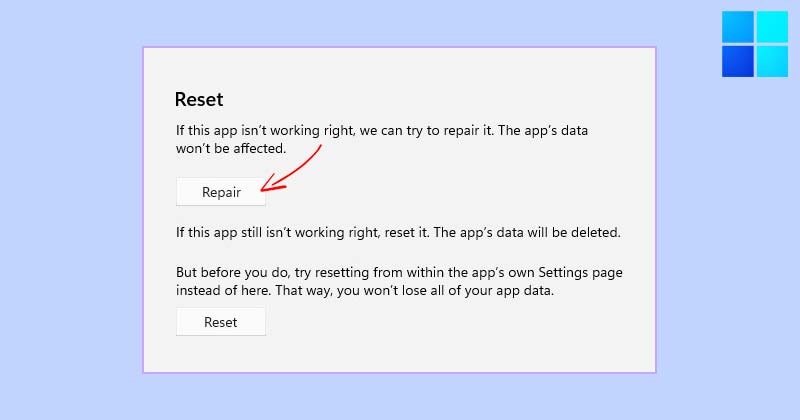


Apps & Games can misbehave on the operating system for various reasons: malware issues, corrupted or missing files, system errors, etc. Whatever the reason, you can quickly repair apps in Windows 11. So, if a specific app/program is not running correctly on Windows 11, you should go for the repair function instead of reinstalling it.
Also Read: 5 Best Live Wallpaper Apps for Windows 11
Steps to Repair Apps and Programs in Windows 11
Important: You won’t see the repair, change, or modify options for all apps and programs installed on Windows 11.
1. Click on the Windows 11 Start button and select Settings.
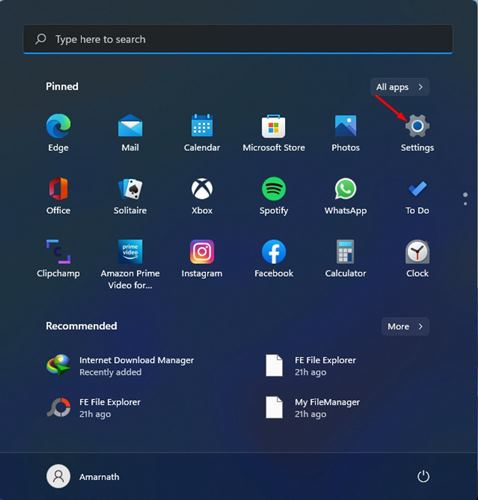
2. On the Settings page, click on Apps.
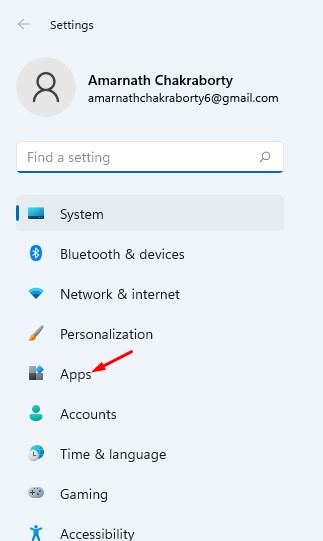
3. On the right pane, click on the Apps & features option.
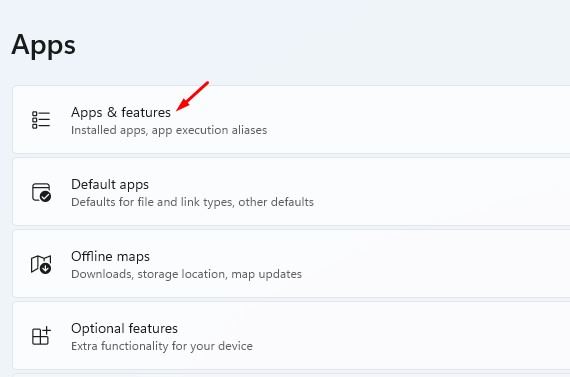
4. Scroll down and find the app that you want to repair. You need to click on the three dots beside the app name.
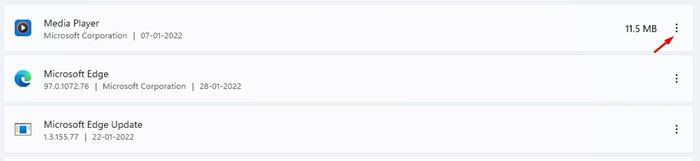
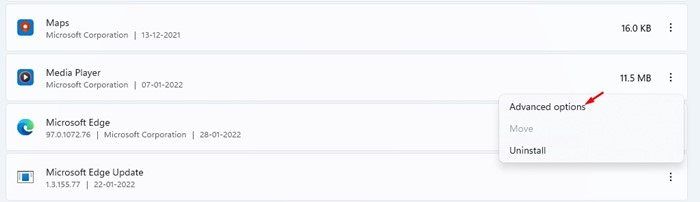
5. Next, click on the Advanced options link under the app name.
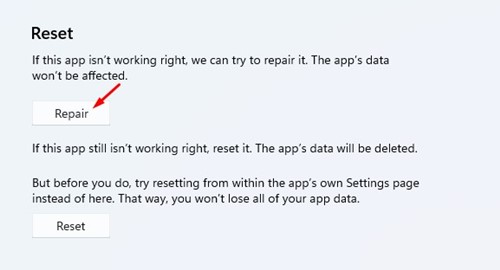
6. On the next screen, click on Repair.
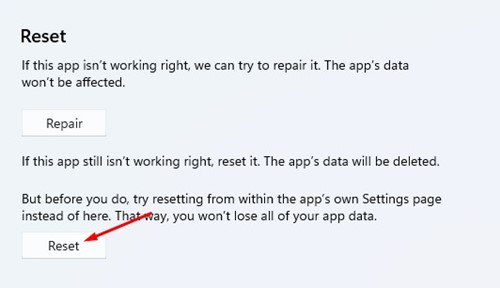
7. If the app is still not fixed, you need to click on the Reset option.
How to Repair Apps and Programs via Control Panel
Just like the Settings app, you can rely on the Control Panel to repair apps on Windows 11.
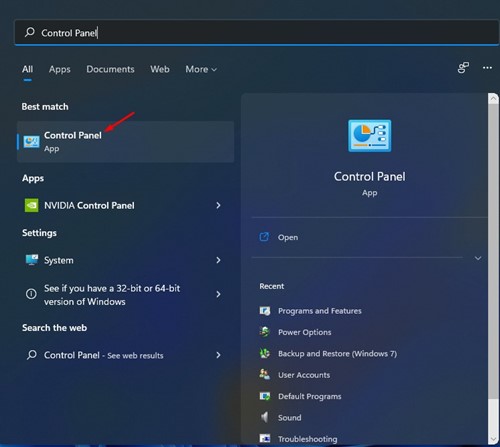
1. Open the Windows 11 search and type in Control Panel. Open Control Panel from the list.
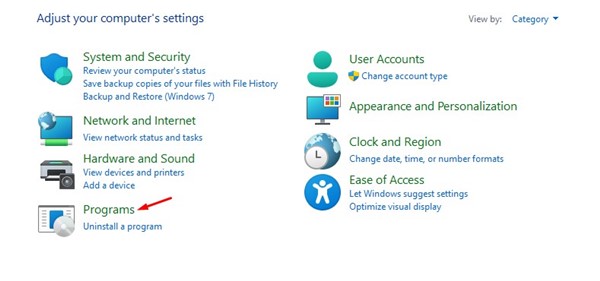
2. Click on Programs.
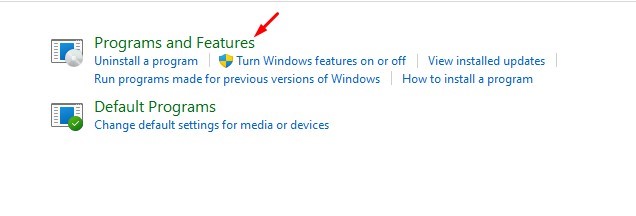
3. On the Programs page, click Programs and Features.
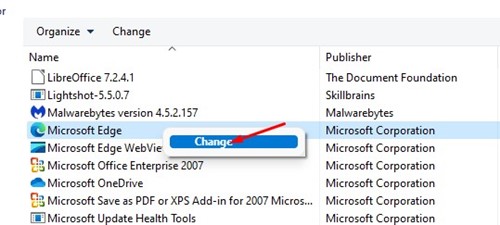
4. Right-click on the program you want to repair and select ‘Repair’. If the Repair option is not available, click Change.
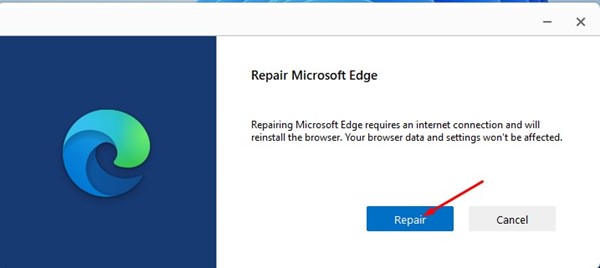
5. On the next screen, click on the Repair option. Then, you need to follow the on-screen instructions to complete the repair process.
Repairing apps and programs in Windows 11 is pretty straightforward. We have shared the two best methods to get any program repaired in no time. I hope this article helped you! Please share it with your friends as well. If you have any doubts related to this, let us know in the comment box below.
The post How to Repair Apps and Programs in Windows 11 appeared first on TechViral.
What's Your Reaction?