How to Hide Background Processes in Windows 11
If you often share your laptop with others, you may want to hide specific processes from appearing in the Task Manager. You can hide background processes in Windows 11, but you will have to make changes to the Registry. Here’s what you need to do. 1. Hide Specific Processes Since we will be editing the […] The post How to Hide Background Processes in Windows 11 appeared first on TechViral.



If you often share your laptop with others, you may want to hide specific processes from appearing in the Task Manager. You can hide background processes in Windows 11, but you will have to make changes to the Registry. Here’s what you need to do.
1. Hide Specific Processes
Since we will be editing the Registry file, it’s essential to follow the steps carefully.
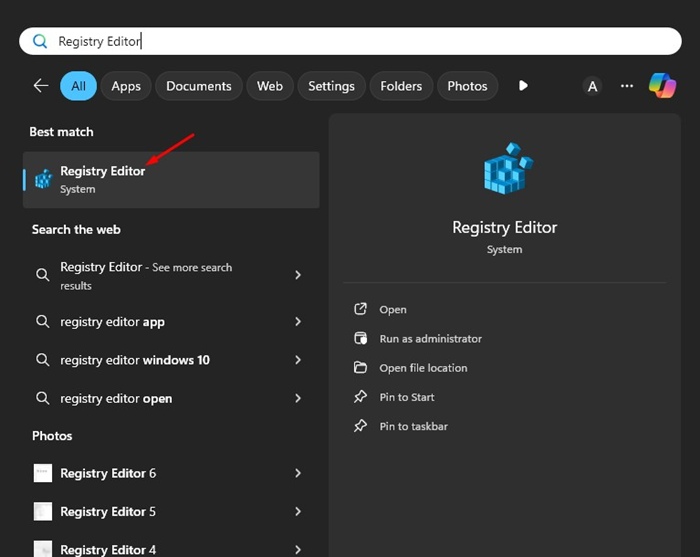
1. Launch Registry Editor from the Windows Search.
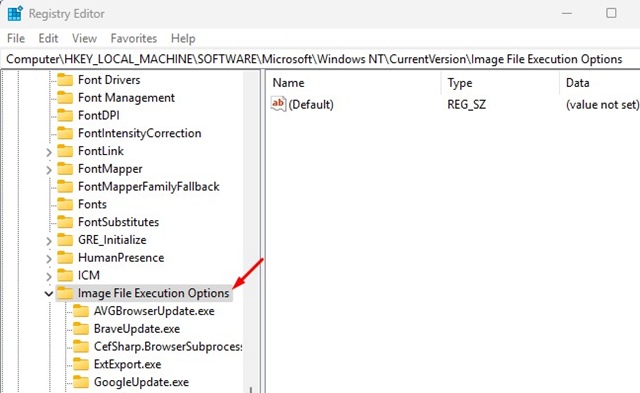
2. Navigate to this path:
HKEY_LOCAL_MACHINE\SOFTWARE\Microsoft\Windows NT\CurrentVersion\Image File Execution Options
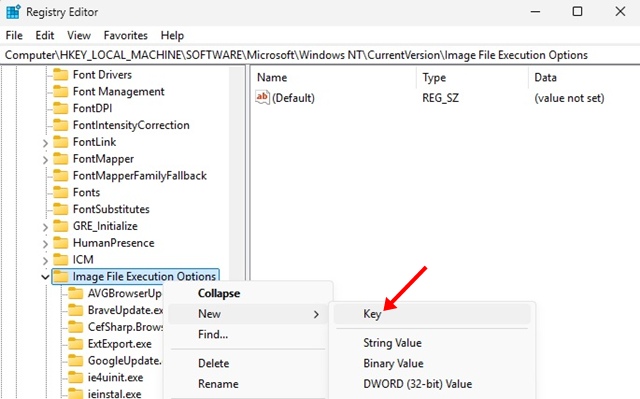
3. Right-click the Image File Execution Options folder and select New > Key.
4. Name this new key exactly as the process you want to hide. For example: chrome.exe.
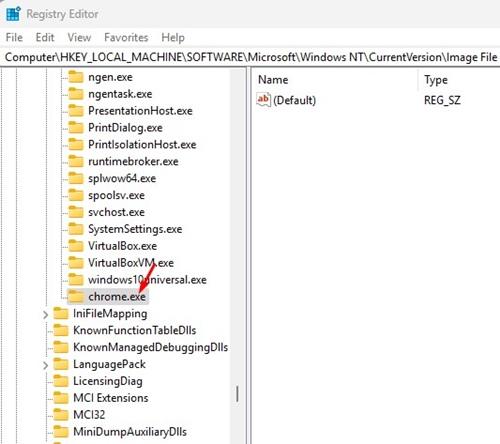
5. Right-click the newly created key and select New > String Value. Name this new value Debugger.
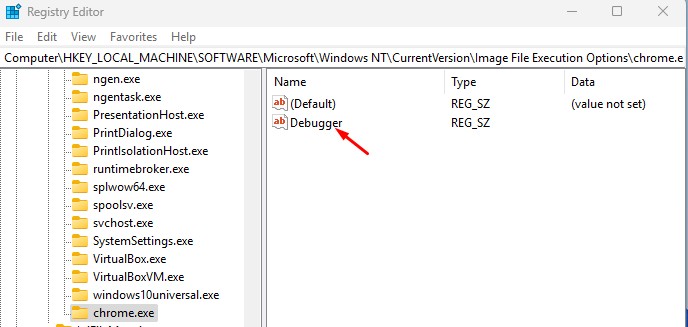
6. Double-click the Debugger Value and set its data to:
C:\Windows\System32\systray.exe
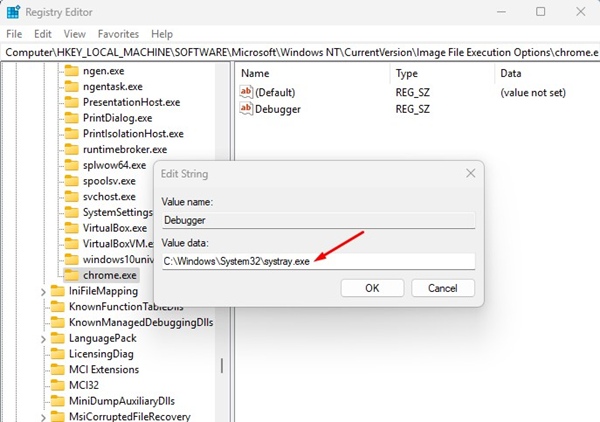
7. After making the changes, close the Registry Editor and restart your PC/Laptop.
The process you have hidden will no longer appear in the Task Manager, but it will still run in the background.
2. How to Hide Multiple Processes
On Windows 11, you can also hide multiple processes using a Single Key. To do so, follow these steps.
1. Launch the Registry Editor and navigate to this path:
HKEY_LOCAL_MACHINE\SOFTWARE\Microsoft\Windows NT\CurrentVersion\Image File Execution Options
2. Right-click the Image File Execution Options and select New > Key. Name this new key as ‘Hideprocesses’
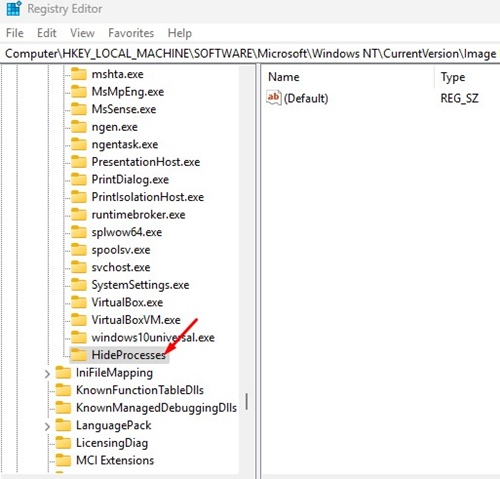
3. Right-click the HideProcesses key and select New > String Value. Name this Value ‘Debugger’.
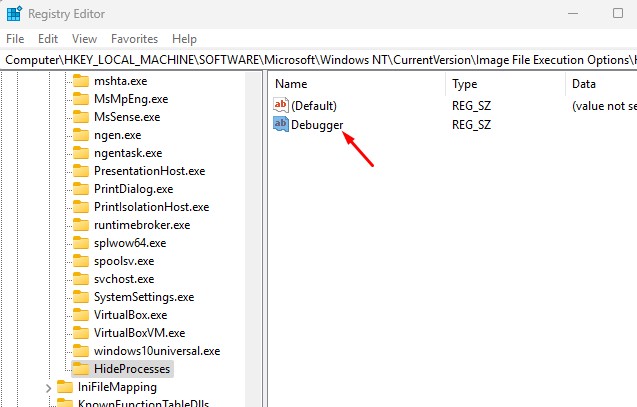
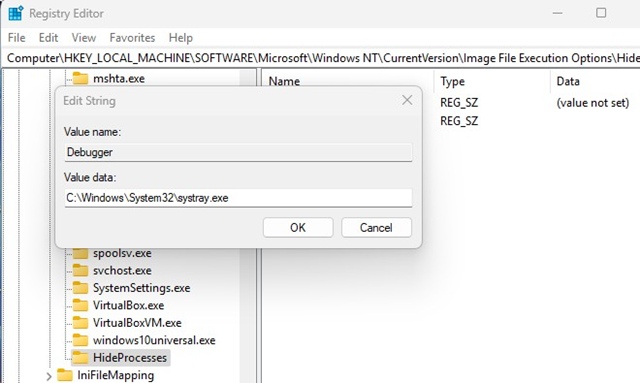
4. Double-click the Debugger value and set its data to:
C:\Windows\System32\systray.exe
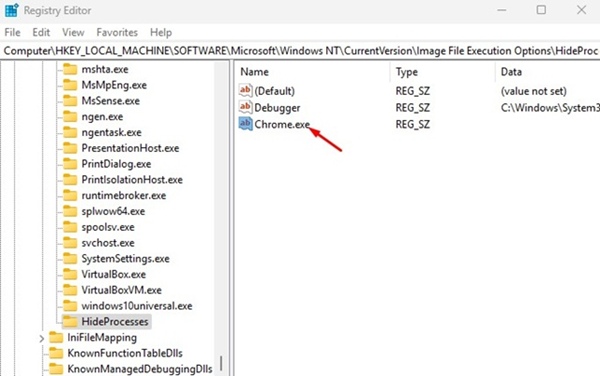
5. You should create a new String Value under the ‘HideProcesses’ key. Name each value exactly as the process executable, such as chrome.exe, Spotify.exe, etc.
6. After adding the processes, close the Registry Editor and restart your PC.
How to Roll Back the Changes?
To reverse the changes, you must delete the new keys and values you created in the Registry Editor. Otherwise, if you have a backup of the old registry, you can restore it.
This article explains how to hide background processes in Windows 11. If you need more help on this topic, let us know in the comments.
The post How to Hide Background Processes in Windows 11 appeared first on TechViral.
What's Your Reaction?