4 Ways to Run Task Manager As Administrator in Windows 11
If you often get the ‘Access is denied’ error when ending tasks in Task Manager, you will need to log in to your administrator account or run Task Manager as an administrator. There are several ways to run Task Manager as an administrator; here are some of them. 1. Run Task Manager As Administrator via […] The post 4 Ways to Run Task Manager As Administrator in Windows 11 appeared first on TechViral.
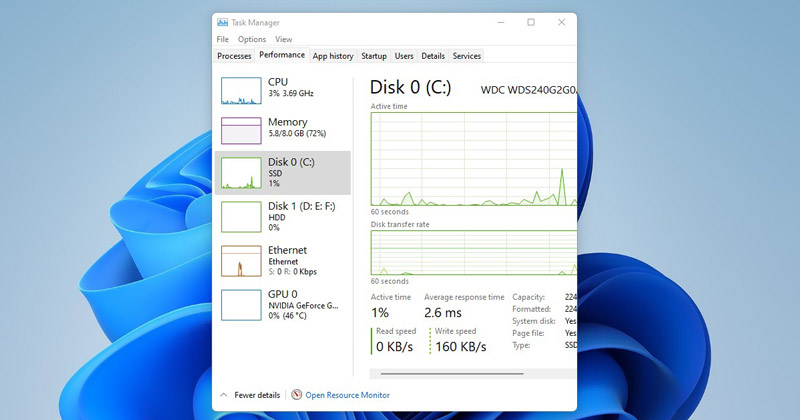


If you often get the ‘Access is denied’ error when ending tasks in Task Manager, you will need to log in to your administrator account or run Task Manager as an administrator. There are several ways to run Task Manager as an administrator; here are some of them.
1. Run Task Manager As Administrator via Windows Search
If you have a standard account but want to run Task Manager with elevated privileges, run it as Administrator.
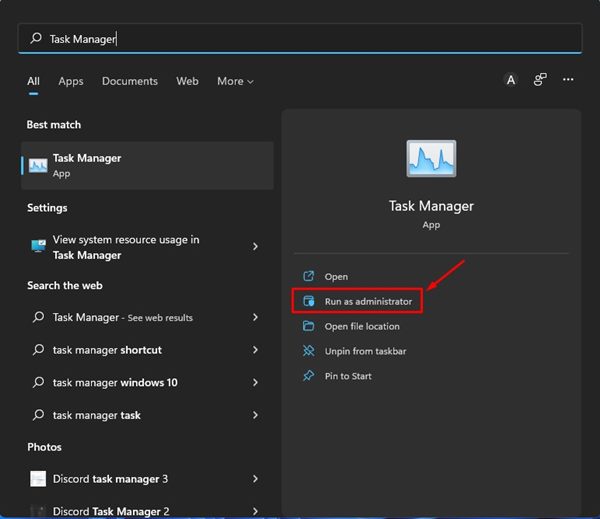
- Click Windows 11 search and type Task Manager.
- Right-click on Task Manager from the search results and select Run as administrator.
- Alternatively, you can click the Run as administrator option in the right pane of the Windows search.
This will run Task Manager as an administrator on Windows 11. You can kill the process that requires elevated privileges to be terminated.
2. Run Task Manager As Admin via Command Prompt
You can use the Command Prompt utility on Windows 11 to run Task Manager as an admin.
1. Click the Windows 11 search and type in Command Prompt.
2. Right-click on the Command Prompt and select Run as administrator.
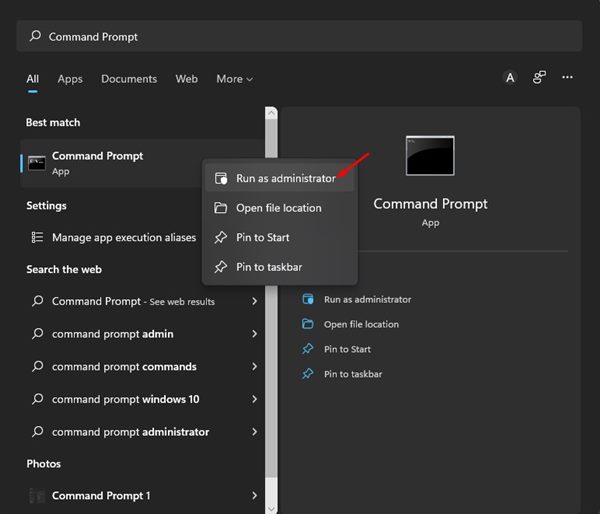
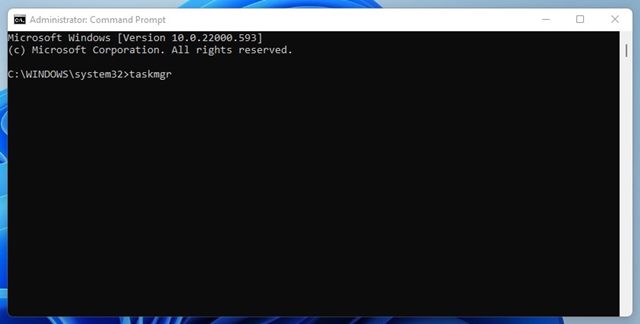
3. Type in taskmgr and press Enter.
3. Run Task Manager as Admin via Desktop Shortcut
You can create a desktop shortcut to always run Task Manager as an admin.
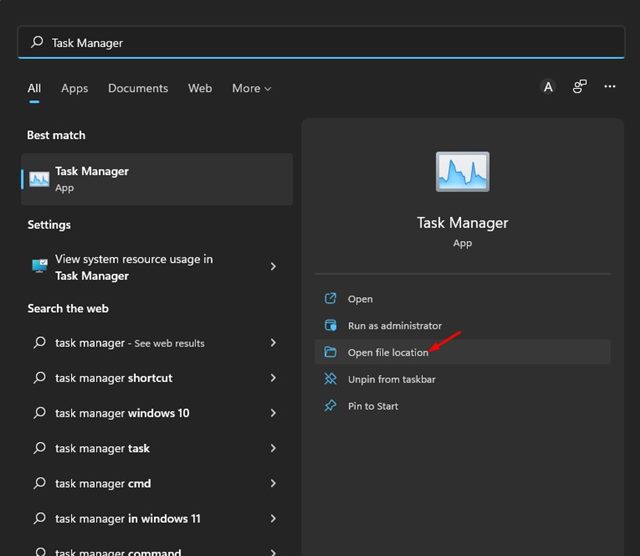
1. Open the Windows 11 search and type in Task Manager.
2. Right-click on the Task Manager from the search result and select Open File Location.
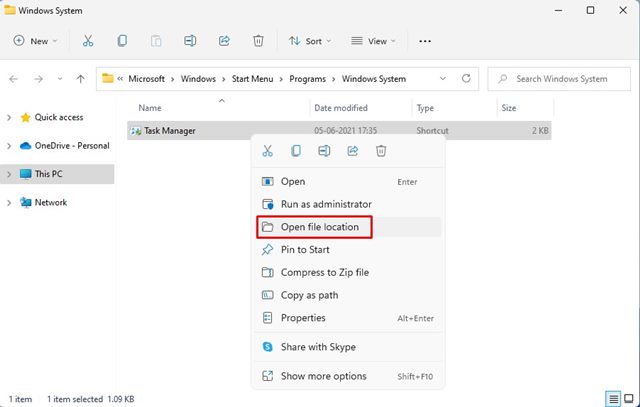
3. Right-click on the Task Manager shortcut and select Open file location.
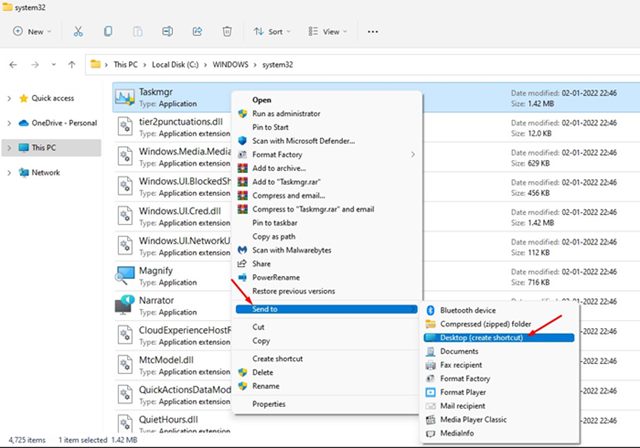
4. Right-click on Taskmgr.exe and select Send to > Desktop (create shortcut).
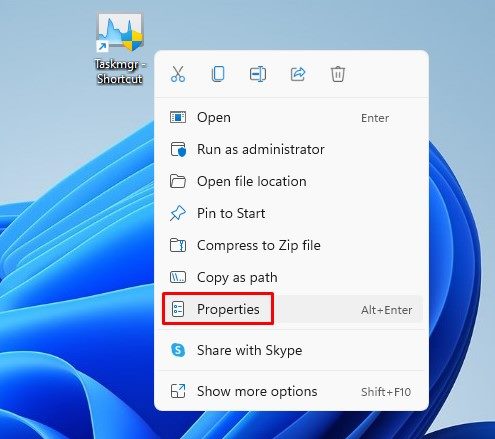
5. Right-click on the shortcut file on your desktop and select Properties.
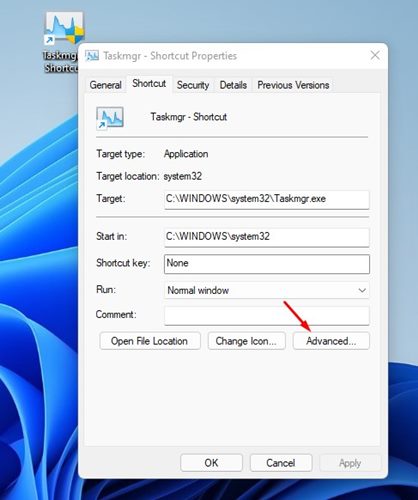
6. On the Taskmgr.exe – Shortcut properties window, click on Advanced.
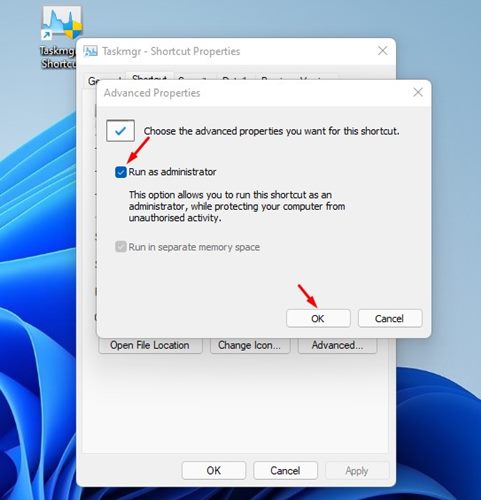
7. Check Run as administrator and click Ok.
Whenever you want to run Task Manager as an admin on Windows 11, double-click on the Desktop shortcut you have created.
4. Open Task Manager as Administrator via Control Panel
Another way to open Task Manager as an Administrator is to access the Control Panel.

- Press the Windows Key + R button to open the RUN dialog box.
- Type Control and press Enter.
- Change the screen view to Large Icons.
- Open the Windows Tools folder.
- Right-click on the Task Manager and select Run as administrator.
You can run Task Manager as an admin on Windows 11 to perform specific tasks that require admin privileges. Like the Task Manager, you can also open PowerShell as an administrator in Windows 11.
The post 4 Ways to Run Task Manager As Administrator in Windows 11 appeared first on TechViral.
What's Your Reaction?